
At a glance
- Built for
- A project manager with about 25 parallel projects who had outgrown a plain to-do list. A personal product: the customer and the only user are the same person.
- Who built it
- The customer drove the product himself: his requirements, his calls. The code was written in pair with Claude Code, an AI coding agent.
- Task
- Show whether the day's tasks fit into the hours available, keep work from eating into personal time, and track what other people still owe.
- What was built
- An app for desktop and phone: installs straight from the browser, keeps its tasks on the device, and a small sync server keeps the copies in step. The old task list moved over in full.
- Timeline
- June 26 – September 24, 2026 (calendar time).
- Scale
- 97 tasks, 27 projects and 55 people in the planner's real data. 412 automated tests.
- Status
- Pilot use. Time savings haven't been measured yet.
Why it was built
The benefit is simple: an overloaded day is visible before it starts. The customer runs about 25 projects at once, and a plain to-do list couldn't show that — which made for two problems.
The main one, in his own words: taking on more for a day "than physically fits, and not noticing". In the old planner almost every task had a date but no duration, so an overloaded day looked like any other. Until it was over😅
The second was quieter: work slowly eating into personal time.
So the core rule was set: count the day in hours — work and personal life apart — and show the overload before the day starts.
What the old task list showed
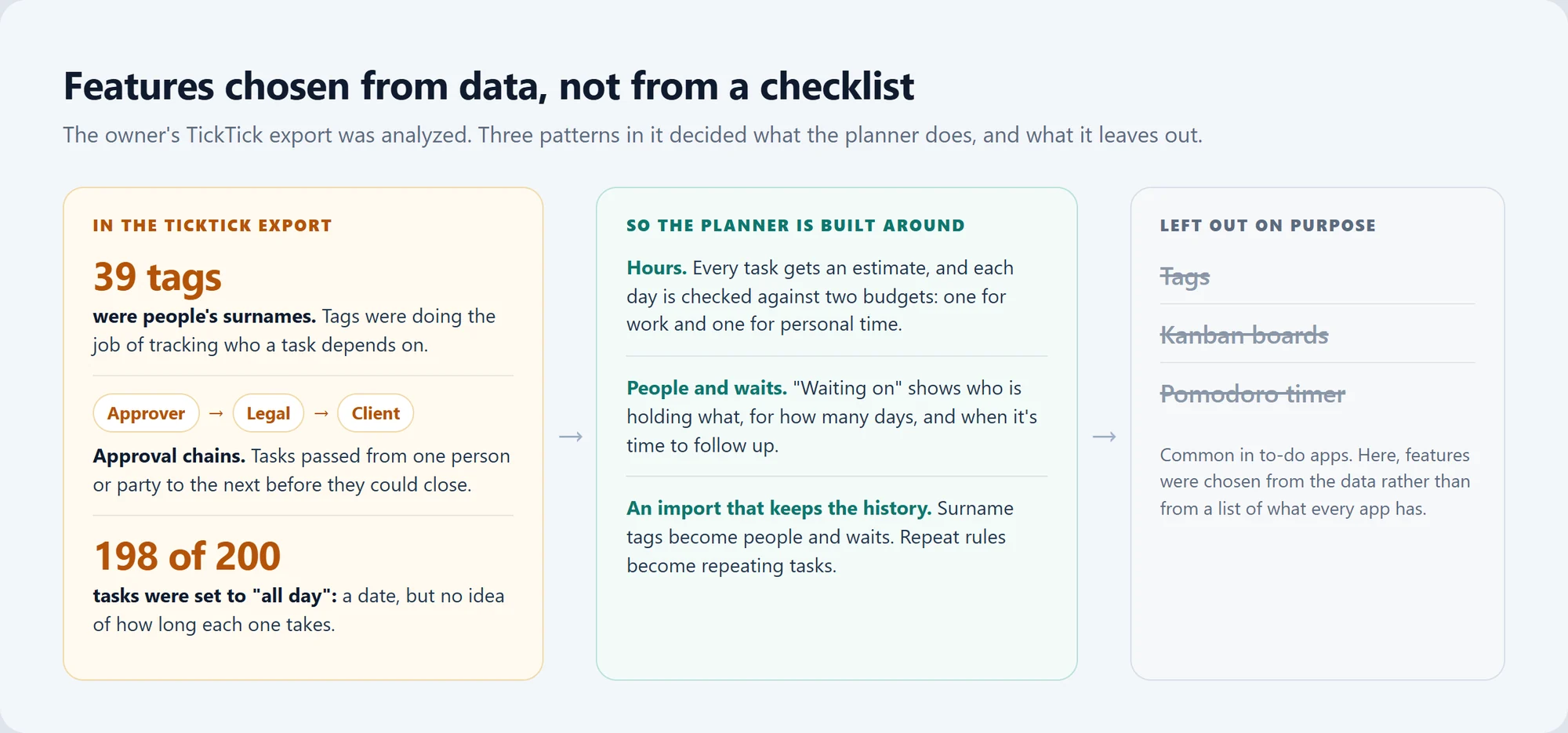
Features were picked from data, not from a list of what every to-do app has. An analysis of the old planner's export found three patterns:
- 39 tags were people's surnames. In effect, tags were tracking who a task depended on.
- Approval chains. Tasks passed through several parties before closing, say legal and then the client.
- 198 of 200 tasks were set to "all day". Each had a date, but nothing said how long it would take.
That set the core of the product: estimates in hours, daily budgets and a list of what other people owe. Tags, kanban boards and a pomodoro timer were left out on purpose.
The export also became the way in: the import turned surname tags into people and waits, and the repeat rules into repeating tasks.
What the planner shows
All screenshots show the real app, run locally on demo data with project names and surnames replaced. The interface is in Russian; the infographics, including the annotated Today screen, are in English.
Today: does the plan fit?

The day opens with two tallies, one for work and one for personal time. Each compares the planned hours with that day's budget and shows what's left, e.g. "4 h 40 min free" of a 5-hour work budget.
A row of cells, one per budgeted hour, fills up as time is planned. Two details keep an incomplete or overloaded plan from hiding:
- Overdue tasks still count. They're folded into one block, but their minutes go into today's load.
- Missing estimates show. The card counts the tasks without an estimate and links to estimate them. If the work or personal part of the day has tasks but none is estimated, the tally shows a question mark instead of a number.
Triage: four questions per task

New tasks don't have to be sorted on the spot. The Triage button shows how many are waiting, and a short wizard takes each one through four steps: project, priority, due date and an estimate in hours.
The screen itself calls the last step the basis of workload control.
Waiting on: who has the ball

A manager's day depends on other people's answers, so people here are first-class citizens of the planner, not tags. One task can wait on several people at once — and all of them stay visible.
Waits are grouped by person with the days counted, and a filter shows only those due a follow-up.
Workload: the days ahead
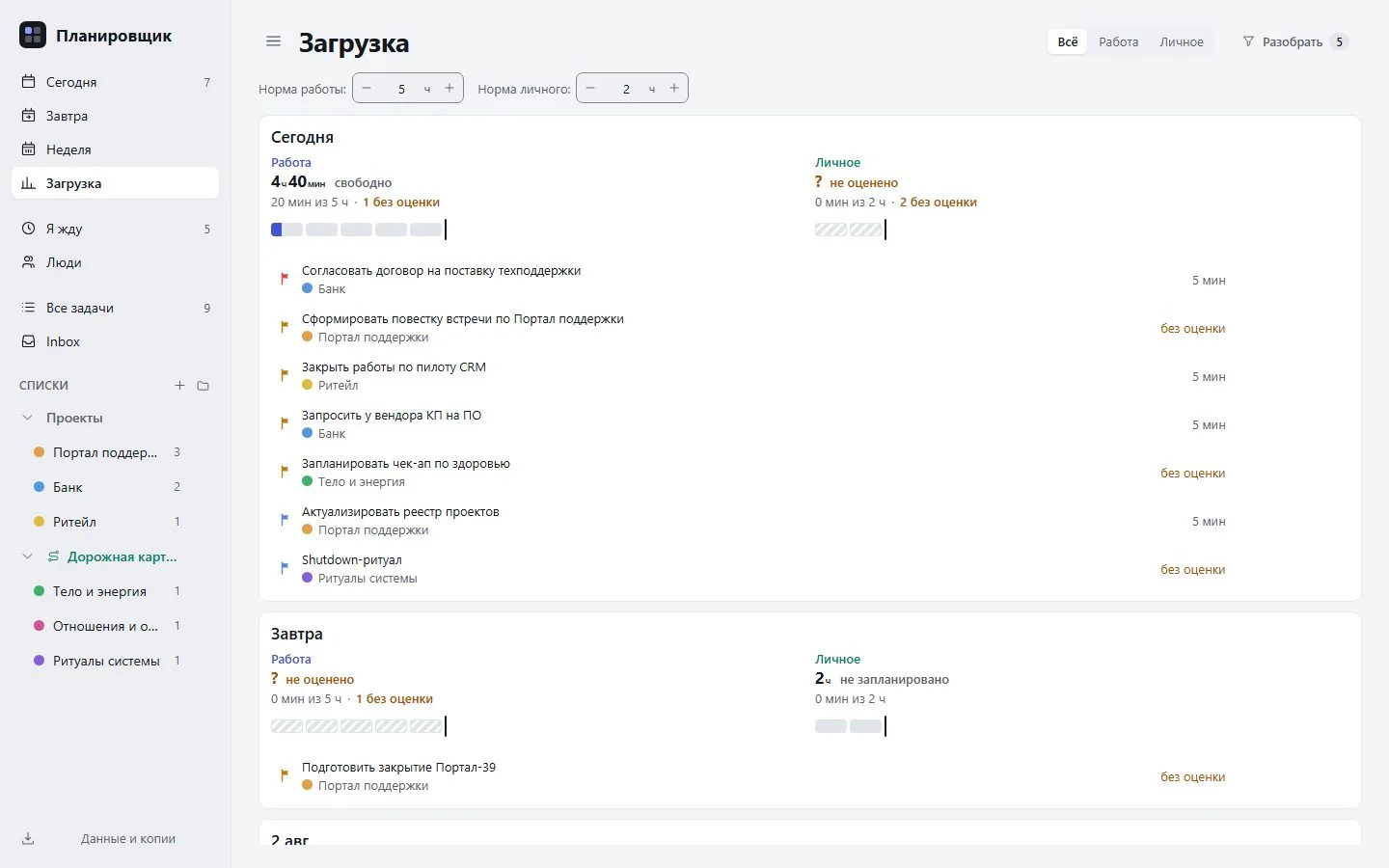
The same check, applied to the coming days, so an overloaded day shows up before it arrives. Tasks without an estimate are marked here too, so a gap in the plan isn't mistaken for free time.
On the phone
The same app installs on an iPhone straight from the browser, with buttons sized for thumbs. Same day, same data as the laptop — no second list to maintain.
How it's used day to day
The planner is in pilot use by the customer himself. The daily routine is short: capture a task in the Inbox or straight onto today → triage → check both tallies → chase people in Waiting on → look ahead in Workload.
How much time it saves? Honestly, nobody has measured that yet.
Numbers and cost

Running it. The app runs in the browser and on the phone; the only server is a small sync service on a rented server. No running-cost figure is available.
Something similar for your workflow. The price is agreed after a short brief.
How it works
The app itself is a set of screens (Today, Tomorrow, Week, Workload, Waiting on, People, All tasks, Inbox and lists) plus the Triage wizard.
The data lives on the device
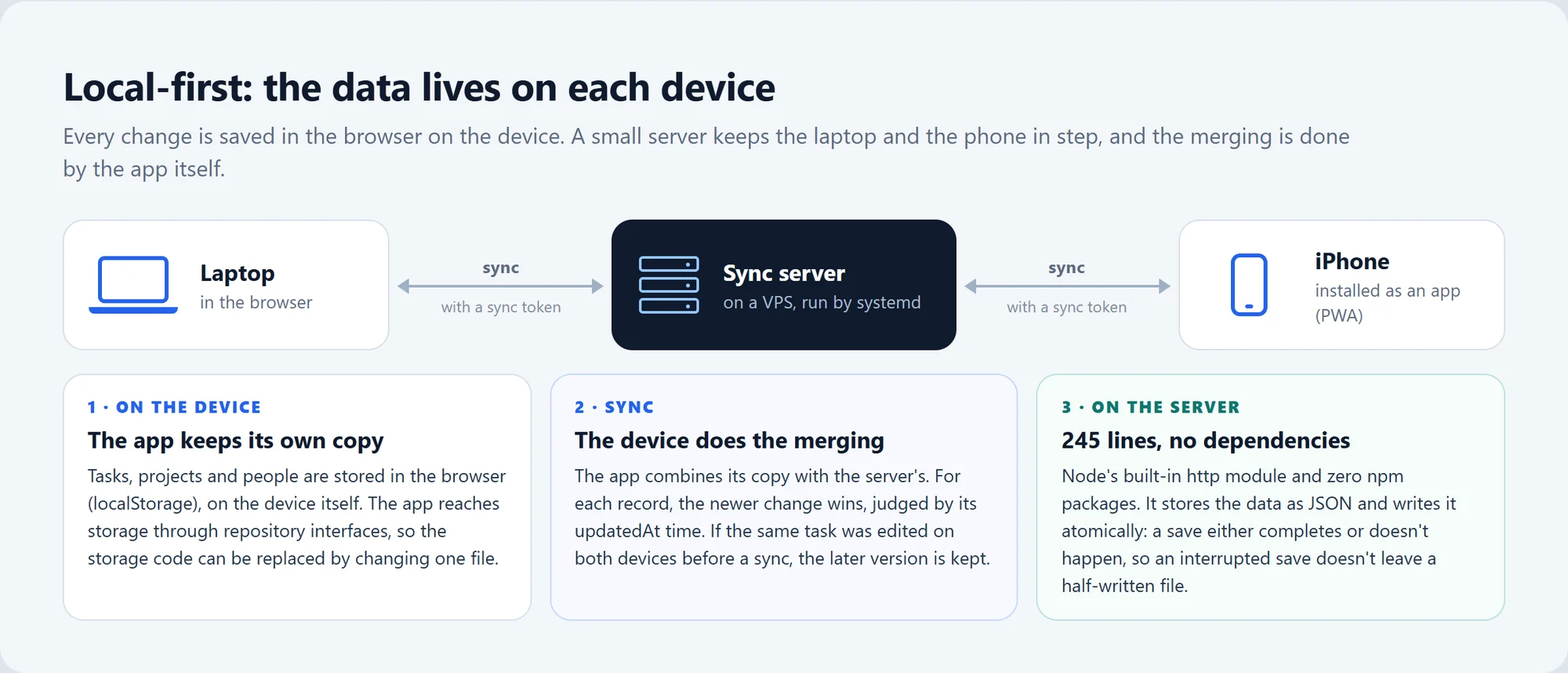
Many web apps keep data on a server and fetch it for every screen. This one is the other way around: each device keeps its own copy in the browser, and the server just keeps the copies in step.
Three decisions keep that simple:
- The merge happens on the device. On sync, the app combines its copy with the server's record by record, and the newer change wins (every record carries its last-update time,
updatedAt). - The server is small. 245 lines and zero third-party packages, so there's nothing foreign to update or audit.
- Saves are atomic. A save either completes or doesn't happen at all, so an interrupted save never leaves a half-written file.
The merge has a trade-off. If the same task was edited on the phone and the laptop before a sync, the later version wins as a whole and the other device's edits to it are overwritten. For one person moving between a laptop and a phone, that's simple and predictable.
Storage access sits behind repository interfaces, apart from the screens and the logic, so switching from browser storage to something else means replacing one file. Moving existing data would be a separate step.
One command to release, one to roll back
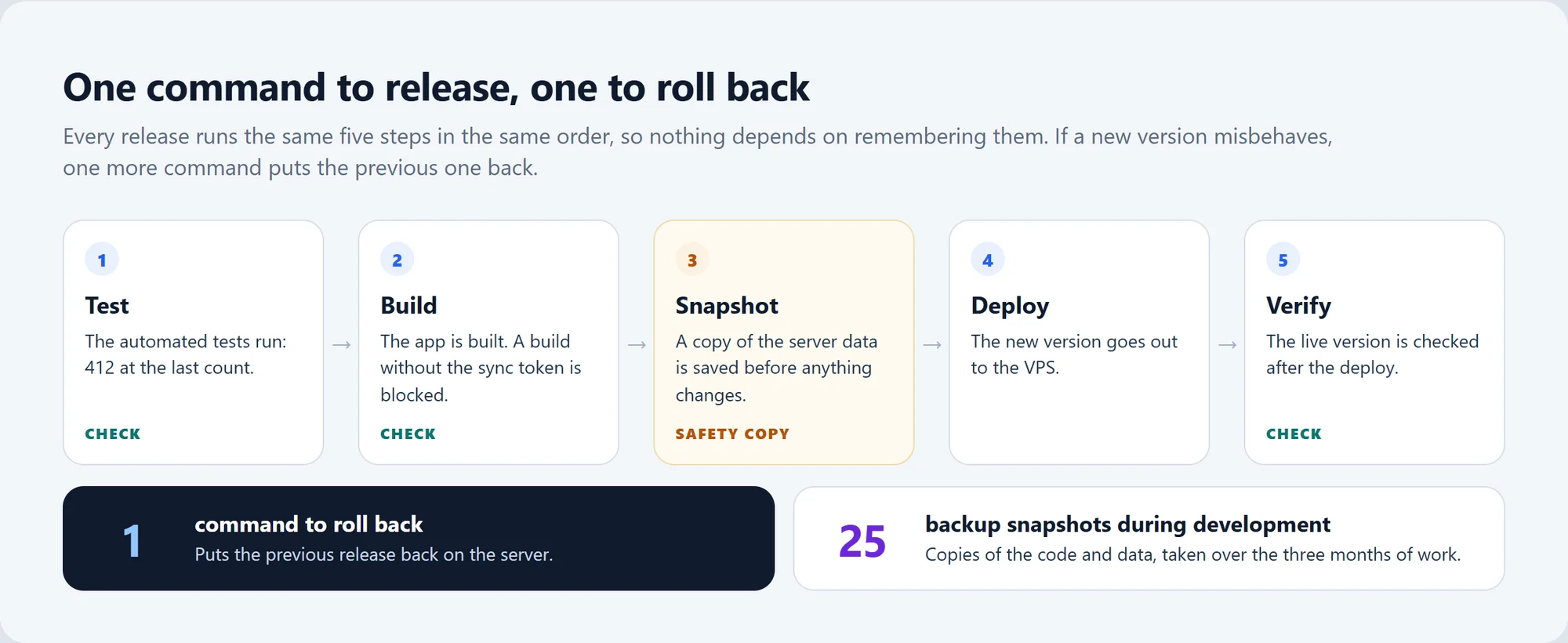
A release is one command that runs five steps in order: the automated tests, the build, a snapshot of the server data, a deploy to the server and a check of the live version. A second command rolls it back.
Nobody has to remember the order, and the data is copied before anything changes. One more guard: the build won't run without the sync token, so a version with sync left unconfigured can't go out by accident.
Checking the interface, not just the code
Automated tests check the logic, and the interface gets checks of its own:
- A screenshot tool on headless Edge (a browser running without a window) checks every capture for three problems: sideways scrolling, margins under 16 px and tap targets under 44 px, a common minimum for a fingertip.
- An audit by skeptical AI agents. Agents briefed to act as picky reviewers went through the interface and logged about 120 findings in 11 areas.
- A six-step redesign followed, checked with 449 control screenshots in three screen sizes and two themes.
- Project colors with a difference check. The colors are toned down, and a test measures ΔE, a standard measure of how different two colors look, so neighboring projects don't blend together.
Development: June 26 – September 24, 2026
| Date | What happened |
|---|---|
| June 26 | Development starts. |
| August 16 | Brief for the interface audit by AI agents, followed by a six-step redesign. |
| September 24 | End of the period covered here. The app is now in pilot use. |
Who this is for
- Managers and team leads who run many projects at once and spend much of the week waiting on other people's approvals.
- Consultants, agencies and freelancers who sell their time and need to know whether the week has room before saying yes.
- Anyone leaving an off-the-shelf tool who wants a planner shaped around how they actually work, with their tasks brought along.
- Businesses that want their planning data on their own server rather than in a third-party service. This build serves one owner; team accounts and roles would be scoped separately.
Engineering details
Engineering details
Architecture
- Merge on the client, per record: the newer
updatedAtwins and the whole record is replaced. - Release script: tests → build → data snapshot → deploy → check, with a one-command rollback.
- TickTick import: surname tags → people and waits, RRULE → repeating tasks.
Quality and tests
- 412 automated tests (Vitest and Testing Library), all passing at the last count; the TypeScript compiler (
tsc) reports no errors. - 5,738 lines of tests in 44 files; the app itself is 11,575 lines of TS/TSX without tests.
Data and privacy
- Planning records live in the browser on the customer's devices and sync to his own VPS using a token.
- The screenshots use demo data, with project names and surnames replaced.
Tech stack
| Layer | Technology |
|---|---|
| App | Single-page app: React 18, TypeScript, Vite 5; PWA via vite-plugin-pwa |
| Data on the device | localStorage, behind repository interfaces |
| Sync server | Node.js built-in http module, 245 lines; JSON storage with atomic writes; no npm dependencies |
| Hosting | VPS, systemd |
| Tests | Vitest, Testing Library, TypeScript compiler (tsc) |
| Interface checks | A custom screenshot tool on headless Microsoft Edge |
| Development | Claude Code (an AI coding agent) |